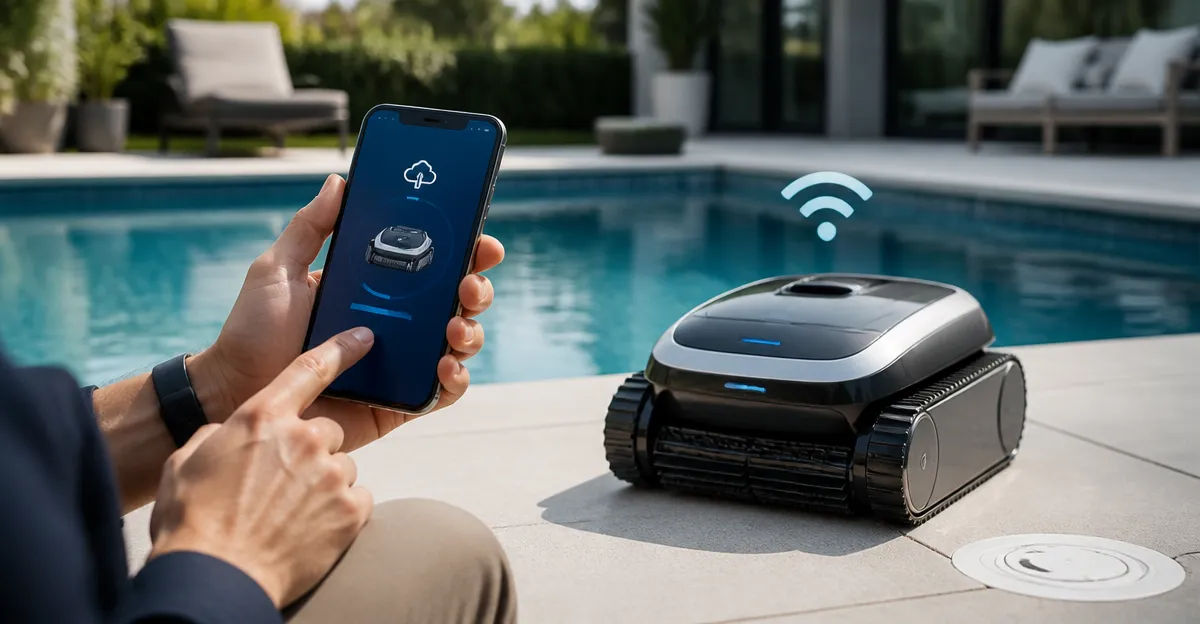
How to Update Firmware on Your Cordless Pool Cleaner Using the Wi‑Fi App: A Step‑by‑Step Guide
Introduction
One will discover how to keep a cordless pool cleaner operating at peak efficiency by applying the latest firmware through a dedicated Wi‑Fi app. Firmware updates often introduce improved navigation algorithms, enhanced battery management, and bug fixes that extend the lifespan of the device. This guide explains each phase of the update process, from preparation to verification, while recommending tools that simplify the task. By following the instructions, a pool owner can reduce manual maintenance, avoid unexpected downtime, and maintain crystal‑clear water year after year.
What You’ll Need
- A Wi‑Fi enabled cordless pool cleaner (e.g., WYBOT B1 or WYBOT C2).
- A smartphone or tablet with the corresponding app installed (WYBOT App or Dolphin App).
- A reliable home Wi‑Fi network operating on 2.4 GHz with a stable internet connection.
- Access to a power outlet for charging the cleaner after the update.
- Optional: A spare USB‑C charging cable for the Aiper Scuba S3 if manual charging is preferred.
Step‑by‑Step Instructions
Step 1 – Verify Compatibility and Review Current Firmware
One should begin by confirming that the pool cleaner model supports over‑the‑air (OTA) updates. The WYBOT B1 offers OTA updates through its app, delivering continuous performance improvements without the need for a computer. Likewise, the WYBOT C2 includes a similar OTA capability, while the Dolphin models provide Wi‑Fi connectivity for firmware upgrades. Open the app, navigate to the "Device Info" section, and note the current firmware version; this information will be useful for confirming a successful update later.
Step 2 – Prepare the Pool Cleaner for Update
Before initiating the update, ensure the robot is fully charged to avoid interruption. The Aiper Scuba S3 features an extended battery life of up to 240 minutes in ECO mode, making it an excellent reference for checking battery health. Place the cleaner on a dry, level surface, engage the auto‑parking function if available, and remove any debris from the filter basket to guarantee optimal performance during the update. A clean filter also prevents false error messages that could halt the OTA process.
Step 3 – Connect the Cleaner to Your Home Wi‑Fi Network
Launch the appropriate app and select "Add Device" or "Settings" to initiate the Wi‑Fi pairing sequence. For the WYBOT B1, the app will prompt the user to place the robot near the router for a stronger signal; the six‑roller brush design ensures stable movement across the pool surface, reducing the chance of signal loss. Enter the Wi‑Fi password, confirm the connection, and wait for the robot to display a solid Wi‑Fi icon, indicating successful pairing. If the connection fails, relocate the router closer to the pool area or use a Wi‑Fi extender.
Step 4 – Initiate the Firmware Update
Within the app, navigate to the "Firmware" or "Software Update" tab. The interface will display the latest version available for the specific model; for example, the WYBOT C2 typically releases updates that refine its gyroscope‑based navigation and extend runtime to 180 minutes. Tap "Update Now" and allow the robot to download the package; the process may take several minutes depending on internet speed. During this period, the robot will remain idle at the pool edge, and the app will show a progress bar and estimated time remaining.
Step 5 – Monitor the Update and Avoid Interruption
It is critical to keep the smartphone within range of the pool cleaner and to avoid turning off Wi‑Fi or the router until the update completes. The Dolphin Proteus DX5i provides real‑time status notifications, confirming each stage of the OTA process; similar notifications appear on the WYBOT app for the B1 and C2 models. If the battery level drops below 20 %, the robot will automatically pause the update and return to the auto‑dock to charge, then resume once sufficient power is restored. Patience during this step prevents corrupted firmware that could render the device inoperable.
Step 6 – Verify the New Firmware and Reset Settings
After the update finishes, the robot will restart automatically and display a confirmation message in the app. Return to the "Device Info" screen and verify that the firmware version matches the latest release noted on the manufacturer’s website. It is advisable to run a short cleaning cycle to ensure that navigation, suction, and brush functions operate as expected; the WYBOT B1 includes a Quick Clean mode of 1 hour, which is ideal for this verification. If any irregularities appear, perform a factory reset via the app and repeat the update process.
Step 7 – Document the Update and Schedule Future Checks
Maintain a log of the firmware version, update date, and any observations about performance changes. This documentation assists in troubleshooting future issues and provides a reference for warranty support. Set a recurring reminder in the app to check for new firmware every three months; the automatic notification feature of the Dolphin and WYBOT platforms will alert the user when a new version is available. Regular updates ensure that the pool cleaner continues to benefit from algorithmic improvements such as smarter navigation and more efficient battery usage.
Tips & Pro Tips
- Perform updates during off‑peak internet hours to reduce download time and avoid bandwidth throttling.
- Keep the pool water temperature between 75°F and 85°F during the update; extreme temperatures can affect battery performance.
- If the robot fails to reconnect after an update, restart both the router and the pool cleaner before contacting support.
- Use the Aiper Scuba S3 as a benchmark for battery health because its lightweight design (18 lb) and dual‑stage filtration illustrate best‑in‑class durability.
Troubleshooting
Problem – Update Stalls at 50 %
Check that the Wi‑Fi signal strength is above 70 % and that no other devices are saturating the network. Relocating the router or using a Wi‑Fi extender can restore a stable connection. If the issue persists, reboot the pool cleaner by pressing the power button for five seconds, then retry the update.
Problem – Robot Becomes Unresponsive After Update
Perform a hard reset by removing the battery (if removable) for 30 seconds, then reinstall and power on. Verify that the app shows the correct firmware version; if not, repeat the OTA process. Contact the manufacturer’s support team, referencing the product’s rating (e.g., WYBOT B1 holds a 4.4/5 rating from 177 reviews) to expedite assistance.
Conclusion
One has now learned a comprehensive, step‑by‑step method for updating firmware on Wi‑Fi enabled cordless pool cleaners, ensuring continuous performance improvements and extended device life. By preparing the robot, establishing a reliable Wi‑Fi connection, and following the app‑guided update process, a pool owner can avoid common pitfalls and maintain optimal cleaning efficiency. Regular firmware checks, combined with proper maintenance of filters and batteries, create a seamless pool‑care routine that saves time and reduces operational costs. Embrace the technology, schedule updates, and enjoy a pristine swimming environment throughout the season.
Products Mentioned in This Guide
Frequently Asked Questions
How do I start a firmware update for my cordless pool cleaner using the Wi‑Fi app?
Open the WYBOT or Dolphin app, select your cleaner, and tap the 'Firmware Update' button to begin the download and installation.
What Wi‑Fi network specifications are required for a successful update?
A stable 2.4 GHz home Wi‑Fi network with strong signal strength and internet access is required; 5 GHz is not supported for the update process.
Can I update the firmware if my pool cleaner’s battery is low?
No; ensure the battery is at least 50 % charged or keep the cleaner on its charging base during the update to prevent interruptions.
What should I do if the firmware update fails or freezes?
Restart the app and the pool cleaner, verify Wi‑Fi connectivity, and retry; if it still fails, reinstall the app or contact support.
What benefits do firmware updates provide for cordless pool cleaners?
Updates improve navigation algorithms, enhance battery management, fix bugs, and can extend the device’s lifespan for clearer water.